Fix Samsung The Frame TV WiFi connection issues on Ubiquiti UniFi

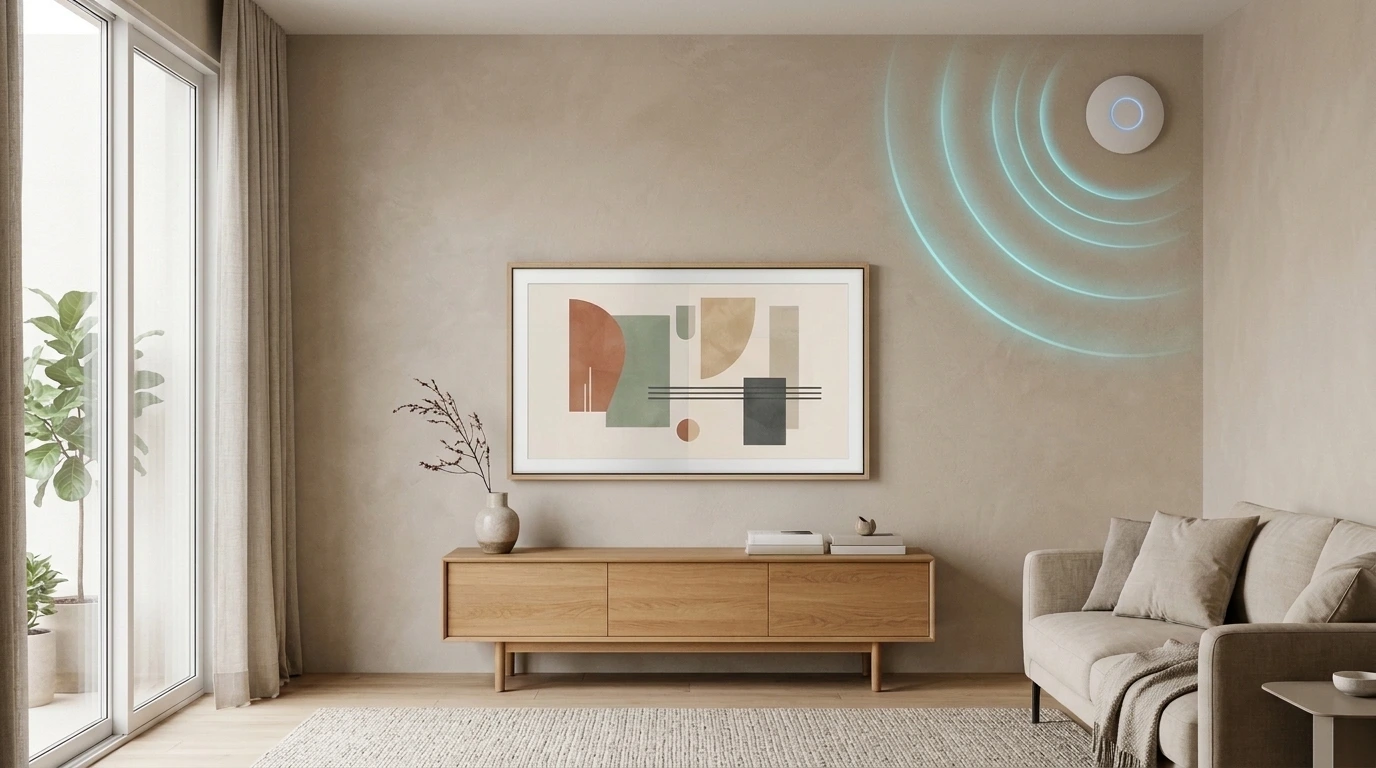
If you own a Samsung Smart TV, in my case, the Samsung 65-inch The Frame and run a Ubiquiti UniFi home network, you may have run into a frustrating loop: every time you try to join your WiFi network, the TV simply throws continuously a failed connection error.
Searching online brings up plenty of forum threads and blog posts, but most of them are quite old and reference legacy UniFi Controller screens or workarounds that don’t line up with the current UniFi Network UI. So instead of keeping an Ethernet cable running to a TV designed to look like a frameless piece of art on the wall, I dug into the UniFi WiFi settings and tested combinations until it connected cleanly.
What Actually Fixed It
After testing a lot of different UniFi radio and security options, three settings made the difference:
- Keep the SSID name simple: Use a WiFi network name without complex or special characters (for example,
SSID-SamsungTV). - Avoid special characters in the WiFi password: Use a long, strong alphanumeric passphrase with no special/complex characters—Samsung’s TV WiFi stack is notoriously picky about certain symbols during the handshake.
- Do not use
WPA2/WPA3mixed mode: Under Security Protocol,WPA2/WPA3transition mode causes the connection to fail. Choose eitherWPA2orWPA3explicitly instead of mixed mode.
Step 1: Create a Dedicated SSID on an Isolated VLAN
In the UniFi Network app, I created a dedicated SSID for the TV and mapped it directly to my Guest_WiFi isolated VLAN (VLAN 10) so the Smart TV stays segmented from my main home network:
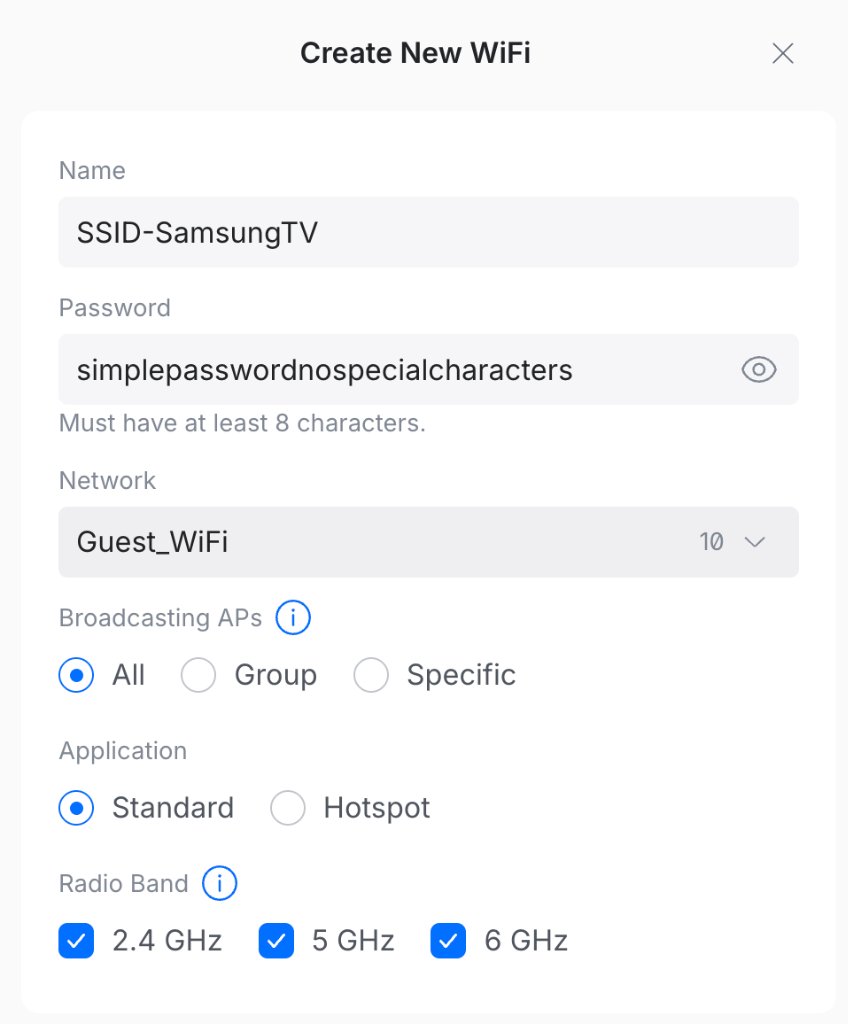
SSID-SamsungTV) with an alphanumeric-only password on an isolated Guest VLAN (VLAN 10).Step 2: Switch Security Protocol Away from WPA2/WPA3 Mixed Mode
Next, under the SSID’s Security settings, change Security Protocol from WPA2/WPA3 mixed mode to a single explicit protocol—in my case WPA3 (alongside Client Device Isolation enabled for extra isolation on the guest/IoT VLAN):
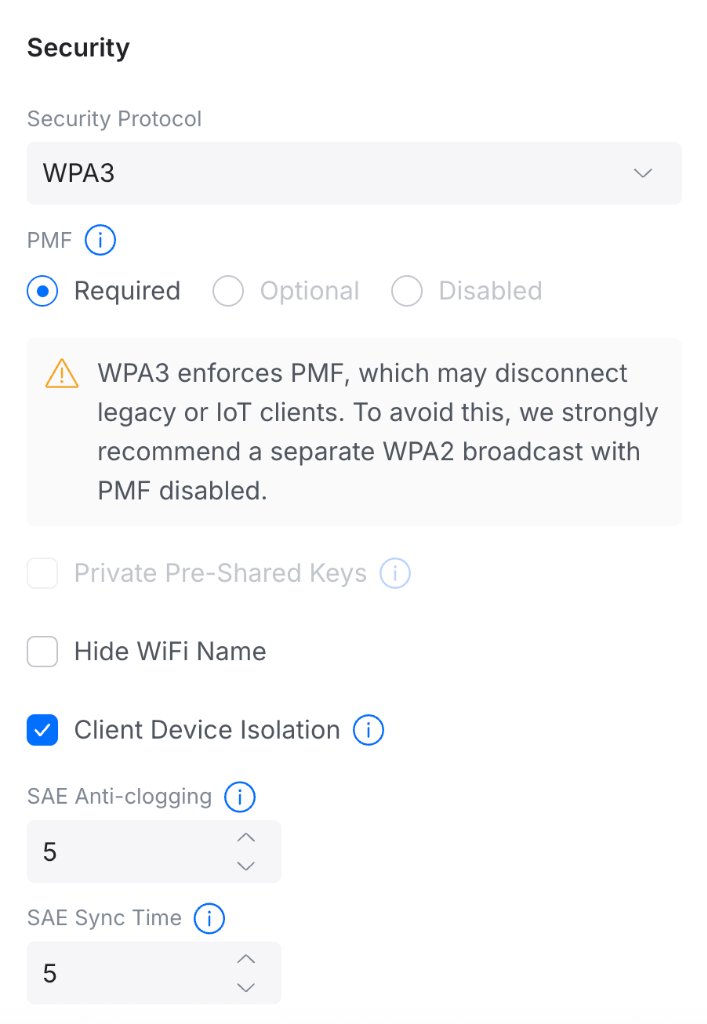
WPA3 (avoiding WPA2/WPA3 mixed mode) with Client Device Isolation enabled.(Note: Newer Samsung The Frame models support WPA3 with PMF Required just fine once mixed mode is turned off. If you have an older Samsung Smart TV that doesn’t support WPA3, select explicit WPA2 with PMF disabled instead—just avoid WPA2/WPA3 mixed mode.)
Result: Cable-Free & Proper isolated SmartTV
With those three changes in place, my Samsung The Frame connected immediately to my Guest WiFi SSID + Isolated VLAN. I was finally able to unplug the ethernet cable and keep my Samsung Frame connected wireless.
In a next blog, I will explain how to block Connected TV (CTV) ads and Smart TV / home-screen that use Automatic Content Recognition (ACR) with the help of AdGuard Home DNS filtering.

Jorge Liauw Calo
Security Engineer at Google Cloud (Google Cybershield) with 13+ years of experience in Cybersecurity across highly regulated industries including Semiconductor, Banking, Fintech, and Insurance. Active member of the Google Cloud Community BeNeLux and Google Cloud Security Community Amsterdam.